What Crane does: Crane is a band-split harmonic saturator built for bass. It splits your signal at a crossover frequency — the low band gets driven through a polynomial waveshaper that adds rich harmonics, while the high band passes through untouched. The two bands are then summed back together, keeping your transients and top-end clarity intact.
Interface Overview
1
Spectrum Display
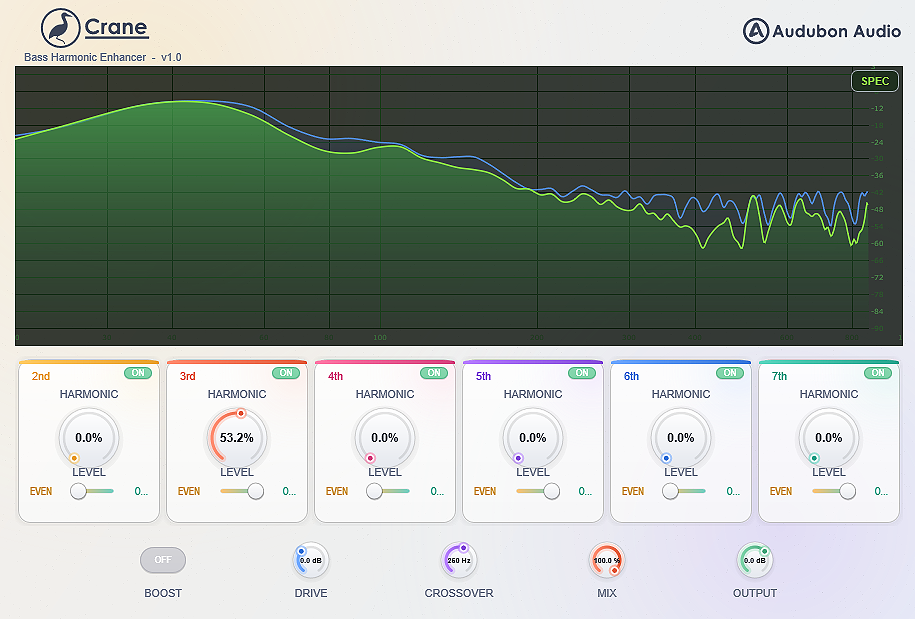
The large display at the top shows your input signal (darker fill) and output signal (brighter line) as a real-time frequency spectrum from 20 Hz to 20 kHz. Use it to see exactly how much harmonic content Crane is adding and where. The vertical purple line is the Crossover — you can click and drag it directly on the spectrum to set the split frequency. A second spectrum view (Hawk mode) is available by clicking the
SPEC button in the top-right of the display.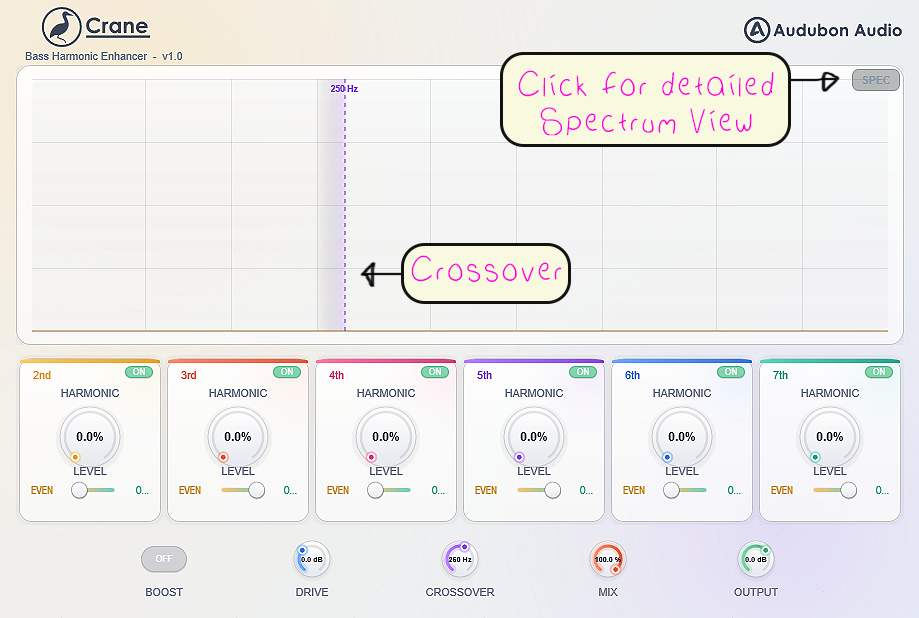
2
Global Controls (Bottom Row)
The four knobs along the bottom control the overall signal flow. These apply to the entire plugin — not individual harmonics.
Drive
−12 dB to +24 dB
Drives the input into the waveshaper. More drive = more saturation and stronger harmonics across all active bands.
Crossover
60 Hz to 1000 Hz
Sets the frequency split point. Everything below gets harmonically processed; everything above passes through clean. Also draggable directly on the spectrum display.
Output
−24 dB to +12 dB
Master output gain applied after the mix blend. Use this to compensate for level increases caused by adding harmonics.
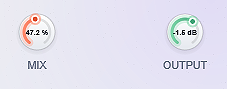
Mix
0% to 100%
Dry/wet blend between the unprocessed signal and the fully processed signal. Lower values add subtle harmonic texture while preserving the original dynamics.

3
Boost Toggle
The BOOST button sits next to the global knobs. When enabled it increases the internal saturation intensity — the waveshaper coefficient multiplier jumps from 1.5× to 2.5×. This gives you a more aggressive, dense harmonic stack. Use it when you want a heavily saturated, growling bass tone rather than subtle warmth.

4
Harmonic Cells (2nd – 7th)
The six panels across the middle of the plugin each represent one harmonic order — 2nd, 3rd, 4th, 5th, 6th, and 7th. Each one is independently controlled. Think of them as individual harmonic layers you can blend to taste.
Level Knob
0% to 100%
Sets how much of that harmonic order is blended into the output. 0% means that harmonic is completely silent; 100% is full contribution.
Even / Odd Slider
Even ←→ Odd
Blends the character of that harmonic between an even-order waveshape (warmer, more musical) and an odd-order waveshape (more aggressive, buzz-like). Center gives a mix of both.
Bypass Toggle
On / Off
Bypasses that individual harmonic cell. Use this to quickly audition what each harmonic is contributing by toggling them on and off while the track plays.
Order Label
2nd – 7th
Shows the harmonic order for that cell. The harmonic marker is also visible on the spectrum display as a dot on the crossover line when the cell is active.

Typical Workflow
A
Set the Crossover First
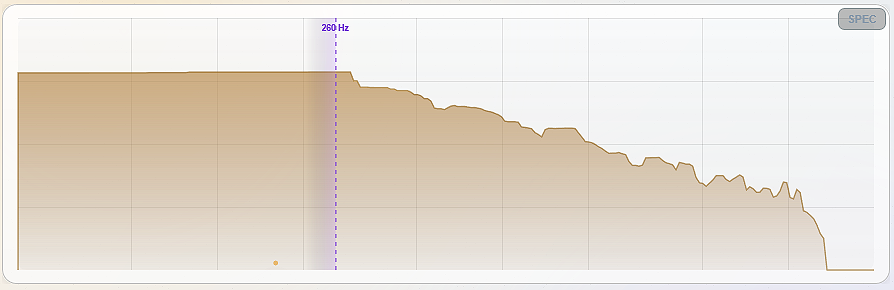
Before touching the harmonic cells, dial in your crossover. Drag the purple line on the spectrum display to the point where your bass fundamentals live — usually somewhere between 100–300 Hz for a typical bass sound. Everything below that point will get processed; everything above stays clean. Getting this right means your harmonics appear in the right frequency range and don't muddy the mid frequencies.
B
Start with Drive and One Harmonic
Set Drive to around
+6 dB to start, then bring up just the 2nd harmonic to around 30–50%. Listen to how it fills out the sub. The 2nd harmonic doubles the fundamental — great for making sub-heavy basses translate on smaller speakers. Once you have a feel for it, start adding the 3rd for grit. Even-order harmonics (2nd, 4th, 6th) tend to sound warmer and more musical; odd-order (3rd, 5th, 7th) are grittier and more aggressive.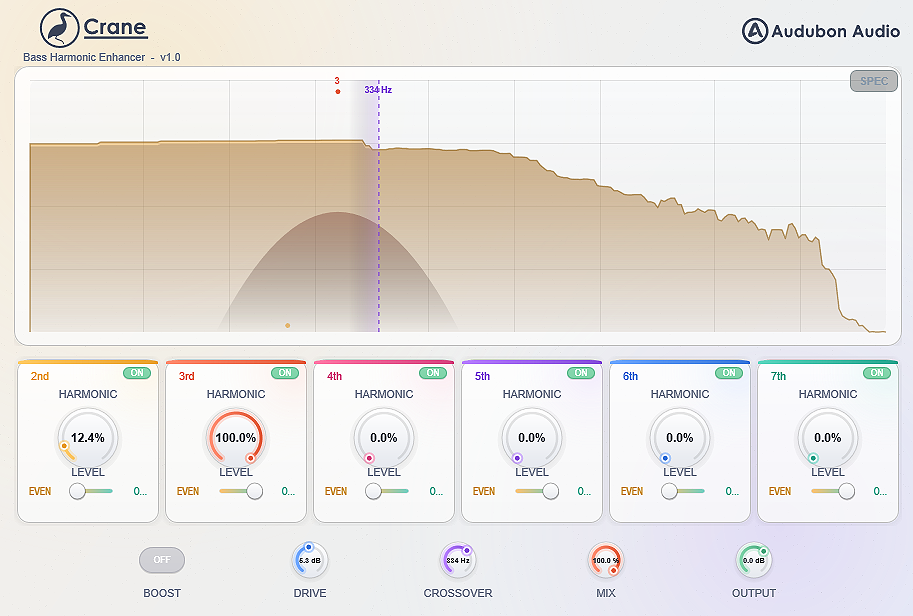
C
Use Even/Odd to Shape Character
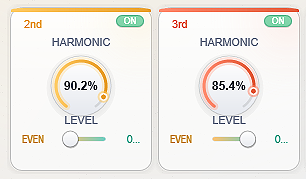
Once your harmonic levels are in a good place, use the Even/Odd slider on each cell to shape the tone. Sliding toward Even produces a rounder, analog-tape-like warmth. Sliding toward Odd pushes into transistor-style distortion territory — more edge and bite. Try blending the 2nd harmonic toward even and the 3rd toward odd for a classic bass enhancement sound that's warm on the bottom and aggressive in the mids.
D
Trim Output and Use Mix
Adding harmonics raises the perceived and actual loudness. Pull the Output knob back until the processed signal matches the level of your bypassed signal — this gives you an honest comparison. From there, use the Mix knob to blend in as much of the processed signal as you need. For subtle sub reinforcement on melodic basses, 30–60% Mix is often all you need. For full-on dubstep bass treatment, run it at 100%.