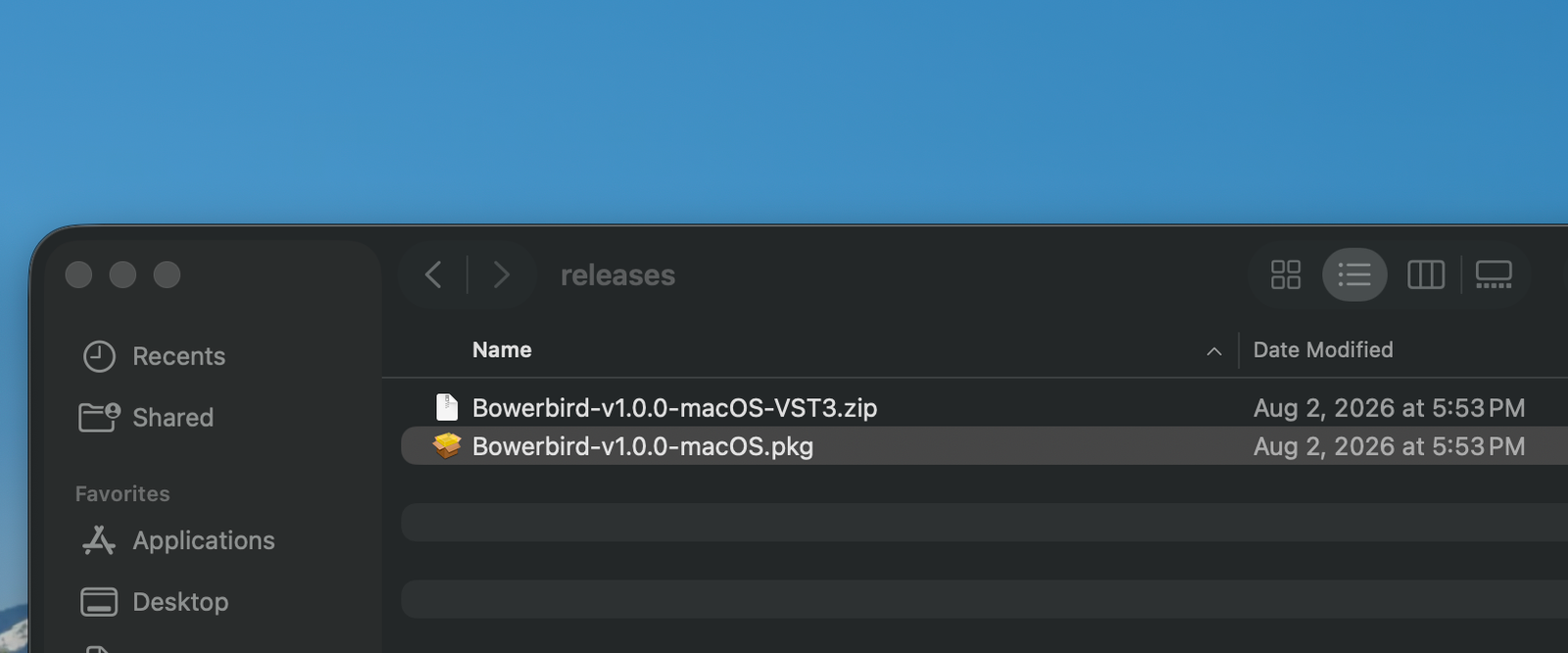
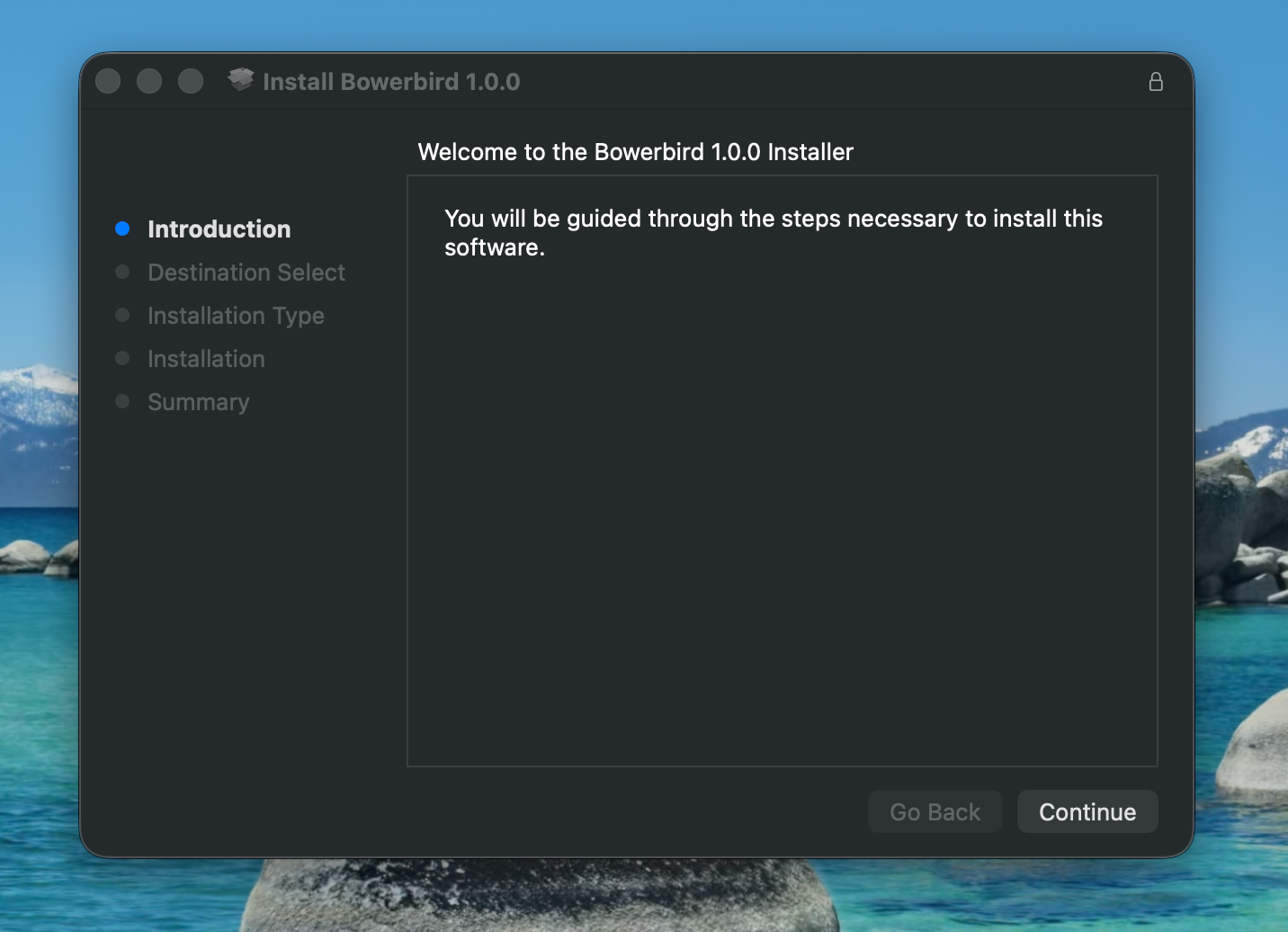
Before you begin: Close your DAW completely before installing. Download your plugin from the Members Area under Purchases & Downloads.
1
Download & Extract the .zip
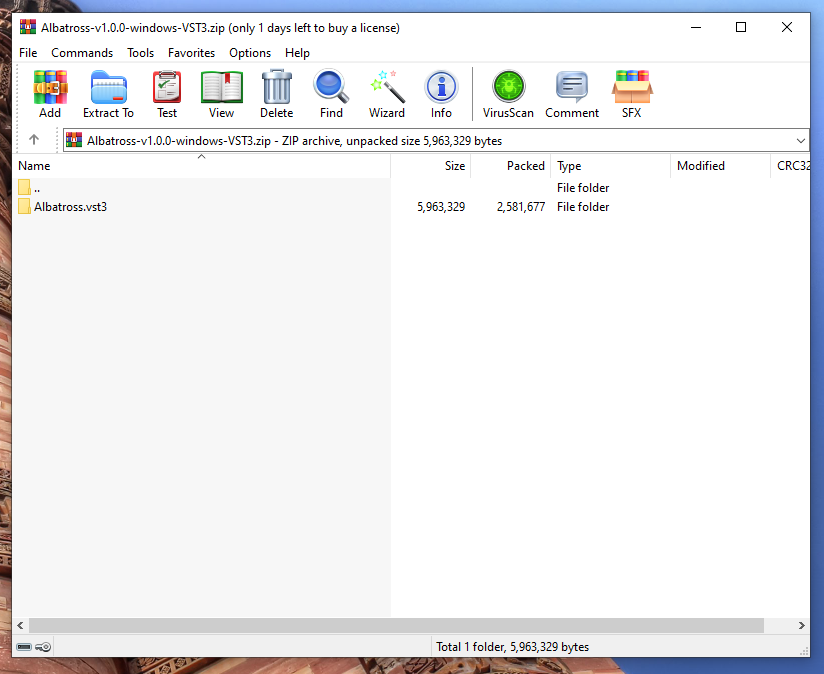
In your Members Area, find the plugin under Purchases & Downloads and click Windows DL. Once downloaded, right-click the
.zip file and select Extract All. Inside you will find a .vst3 folder.
2
Open the VST3 Folder in Windows Explorer
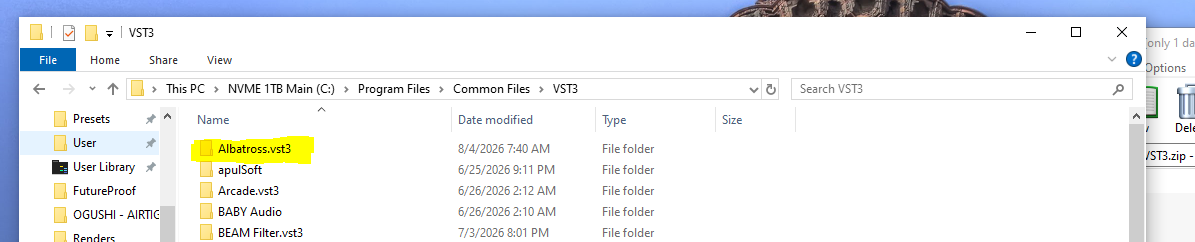
Open a new Windows Explorer window and paste the following path into the address bar, then press Enter:
This is the standard VST3 location that all major DAWs (Ableton, FL Studio, Reaper, etc.) scan by default. If the folder doesn't exist, create it.
C:\Program Files\Common Files\VST3\This is the standard VST3 location that all major DAWs (Ableton, FL Studio, Reaper, etc.) scan by default. If the folder doesn't exist, create it.

3
Drag & Drop the .vst3 File
Drag the
.vst3 folder from your extracted zip directly into C:\Program Files\Common Files\VST3\. Windows may ask for administrator permission — click Continue to confirm.
Windows Defender / SmartScreen notice: Because our plugins are not yet Microsoft code-signed, Windows may show a warning when you move the file. If SmartScreen blocks the action, click More info → Run anyway. If Windows Defender flags the file, select Allow on device. These prompts appear for all unsigned software — they are expected until our Windows code-signing is in place.
4
Open Your DAW & Scan for Plugins
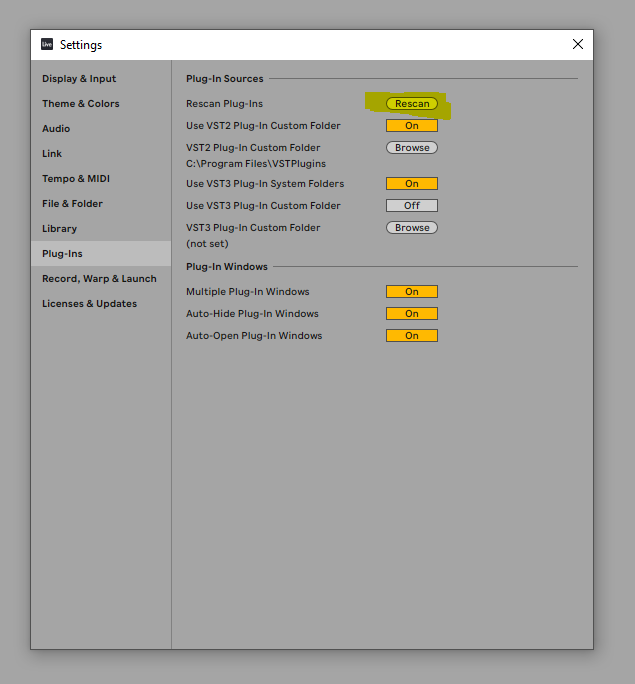
Launch your DAW and run a plugin rescan. In most DAWs this is under Preferences → Plugins → Scan or similar. The Audubon Audio plugin will appear in your instrument/effect browser once detected.
5
Activate With Your Serial
The first time you open the plugin it asks for your serial number. It is in your Members Area under Purchases & Downloads — click Show Serial, copy it, paste it into the plugin and activate. Activation is fully offline and only happens once per machine. Without a serial the plugin runs in demo mode — full features, with the audio dipping to silence periodically.